

lms_user_id) in Okta that can be used with LMS integrations. These attributes allow you to map user identities between your platform and the LMS provider.
Access Okta Admin Dashboard
1
Log in to Okta
Log in to your Okta Admin Console at https://login.okta.com/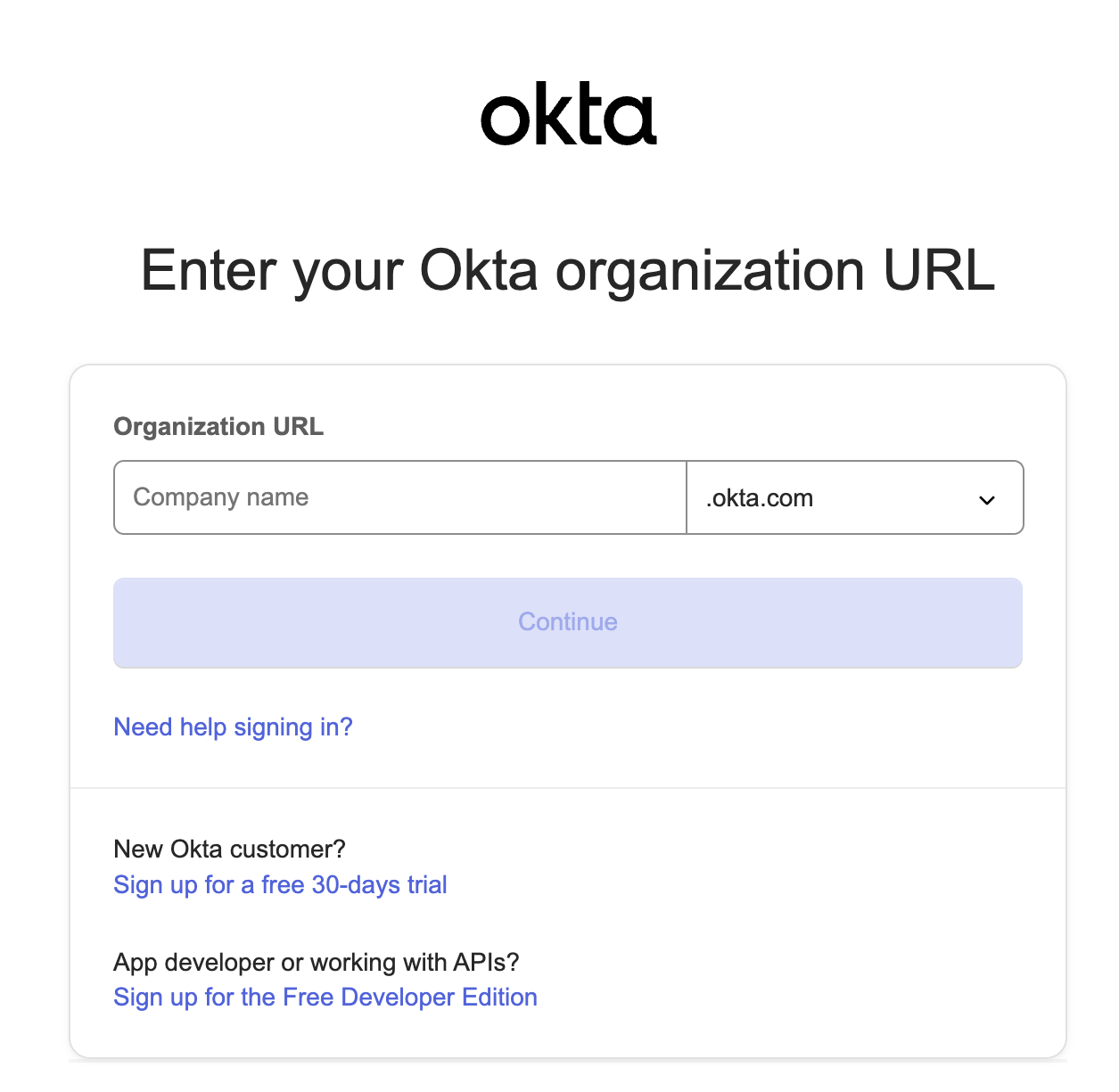
2
Navigate to Applications
From the Okta Admin Dashboard, navigate to Applications > Applications in the left sidebar.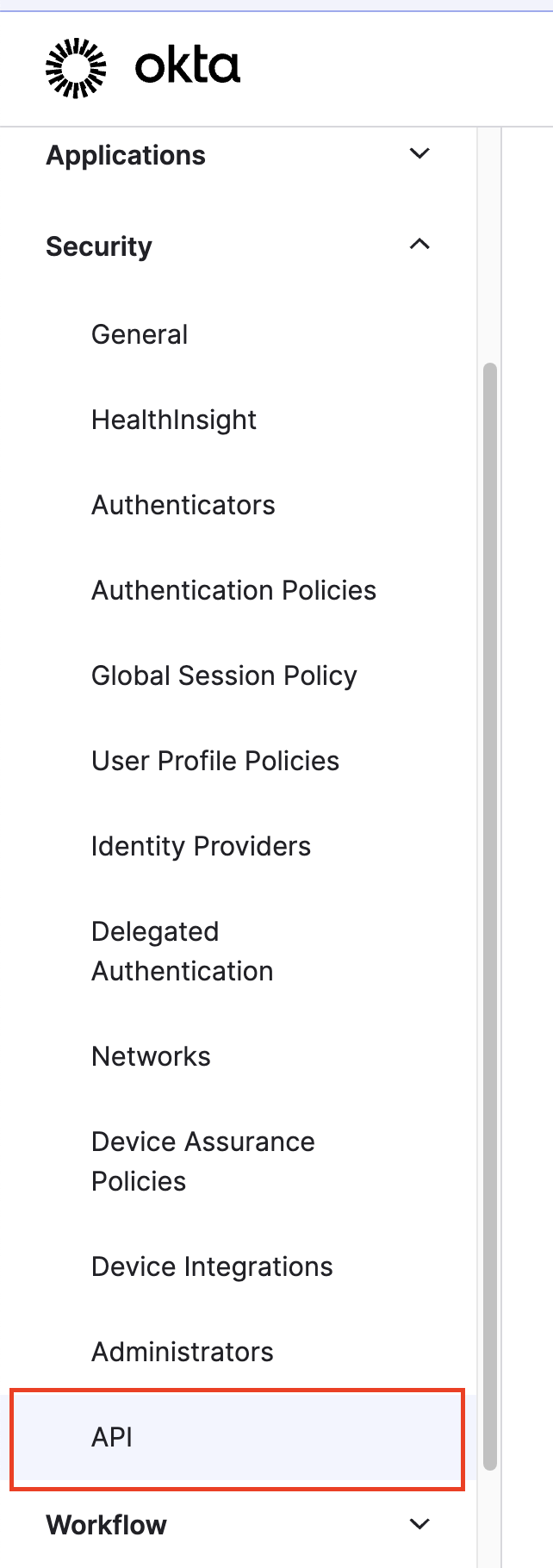
3
Select Your Application
Find and click on the application that will be used for SSO with your LMS integration.If you haven’t created an application yet, click Create App Integration and follow the setup wizard to create a new SAML 2.0 or OIDC application.
Configure Custom User Attributes
1
Navigate to Sign On Tab
In your application settings, click on the Sign On tab.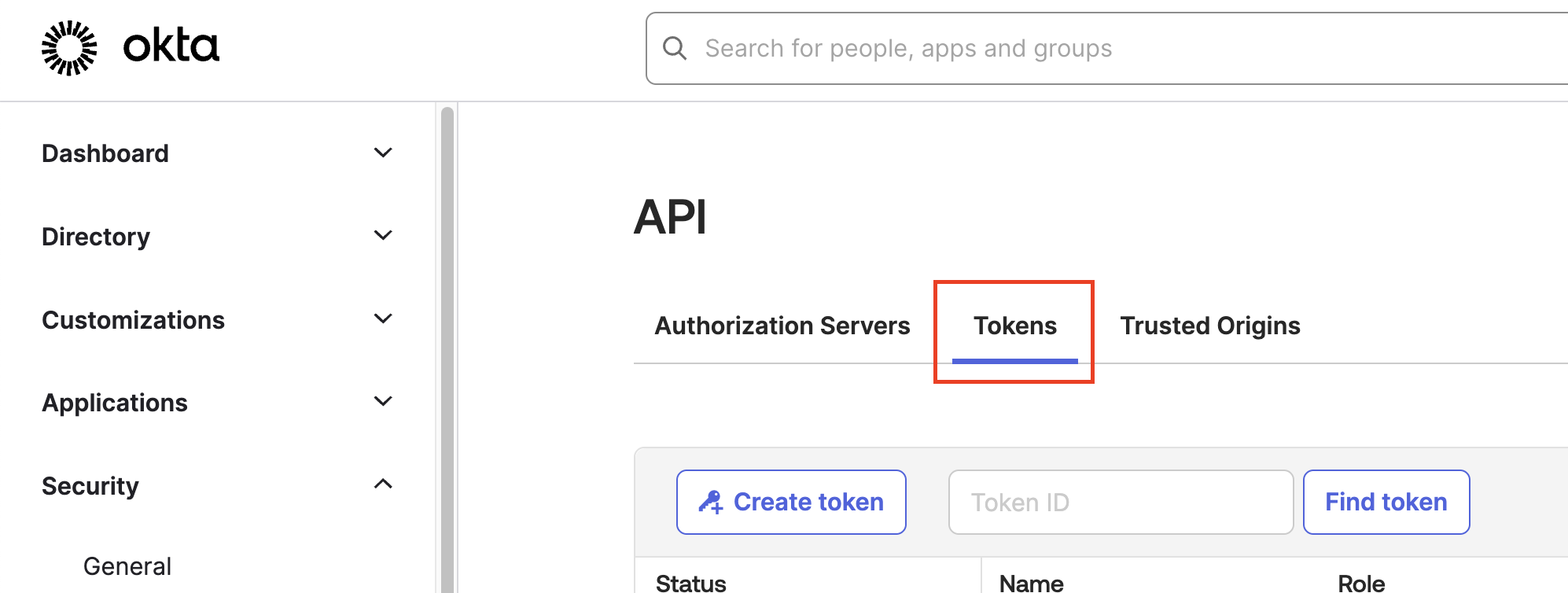
2
Edit SAML Settings
Scroll down to the SAML Settings section and click Edit.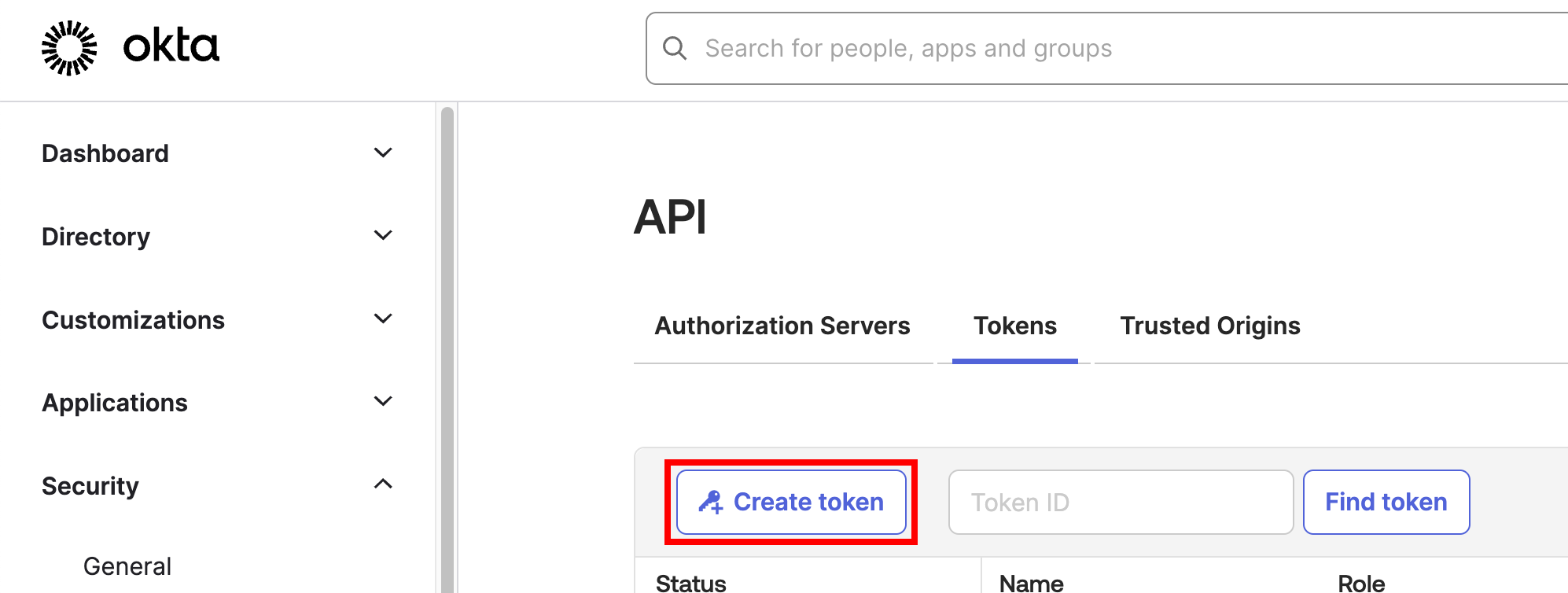
3
Configure Attribute Statements
In the SAML Settings page, scroll to the Attribute Statements section.Click Add Another to create a new attribute statement with the following values:
- Name:
lms_user_id(or the specific attribute name required by your LMS) - Name format:
Unspecified(recommended) orURI Reference - Value: Choose the appropriate user attribute from the dropdown:
user.login- for username/emailuser.id- for Okta user IDuser.email- for user email address- Custom expression or profile attribute as needed
The exact attribute name and value will depend on your specific LMS requirements. Common LMS platforms may require different attribute names such as:
- Docebo:
user.loginoruser.email - Cornerstone:
user.employeeNumber - SAP SuccessFactors:
user.login
4
Add Additional Attributes (Optional)
If your LMS integration requires additional user attributes, repeat the previous step to add them:Common additional attributes include:
- first_name:
user.firstName - last_name:
user.lastName - email:
user.email - employee_id:
user.employeeNumber - department:
user.department - role:
user.title
5
Save Configuration
Click Next through the remaining steps and Finish to save your SAML configuration.
Configure User Profile Mapping
If you need to use custom profile attributes that aren’t available in the default Okta user schema:1
Navigate to Profile Editor
In the Okta Admin Console, go to Directory > Profile Editor.
2
Edit User Profile
Find and click on the User (default) profile to edit the base user schema.
3
Add Custom Attribute
Click Add Attribute and configure:
- Data type: String (most common)
- Display name: Descriptive name (e.g., “LMS User ID”)
- Variable name: Technical name (e.g., “lmsUserId”)
- Description: Purpose of the attribute
- Attribute required: Set based on your requirements
4
Map to Application
Return to your application’s Sign On settings and use the new custom attribute in your SAML attribute statements as
user.lmsUserId.Test SSO Configuration
1
Assign Test User
In your application settings, go to the Assignments tab and assign a test user to the application.
2
Test SSO Flow
Use Okta’s Preview SAML Response feature or test the SSO flow through your LMS integration to verify that the custom attributes are being passed correctly.
3
Verify Attribute Values
Check that the
lms_user_id and other configured attributes appear in the SAML response with the expected values.Linking with Your LMS Integration
Now that you have configured the custom SSO attributes in Okta, you can reference these in your LMS integration setup:1
Access LMS Integration
Navigate to the integration configuration page for your specific LMS platform.
2
Configure SSO Mapping
In the SSO or user mapping section of your LMS integration, specify:
- SSO Attribute Name:
lms_user_id(or the name you configured in Okta) - LMS Field: The corresponding field in your LMS (varies by platform)
3
Test Integration
Perform a test sync or SSO login to verify that users are being correctly identified and mapped between systems.
Congratulations, you’re all set! If you face any issues with the steps mentioned above, please contact us by emailing integrations@stackone.com. We’re always here to assist you!
LMS-Specific Attribute Requirements
Different LMS platforms may require specific attribute names or values:Common LMS Attribute Mappings
- Docebo: Use
user.user_idfor the user identifier - SAP SuccessFactors: Typically uses
user.USERIDor email-based identifier - Workday Learning: Often requires
user.employee_id - 360Learning: Usually accepts
user.mail.
Troubleshooting
- Ensure attribute names match exactly between Okta and your LMS configuration
- Verify that all required attributes are mapped and have values for your users
- Check SAML response format if using SAML-based SSO
- Confirm that users have the necessary attribute values populated in their Okta profiles